Why Cloud-Based AI HIMS is Transforming the Future of Indian Healthcare
Read More →

×
Hospitals can digitize paper records into Excel by taking a clear photo of physical documents with a smartphone and converting them into editable spreadsheets using Excel’s Data from Picture feature or a secure JPG-to-Excel converter.
Businesses using ZYNO Books cut accounting time by 70% and stay 100% ZATCA-compliant — automatically.
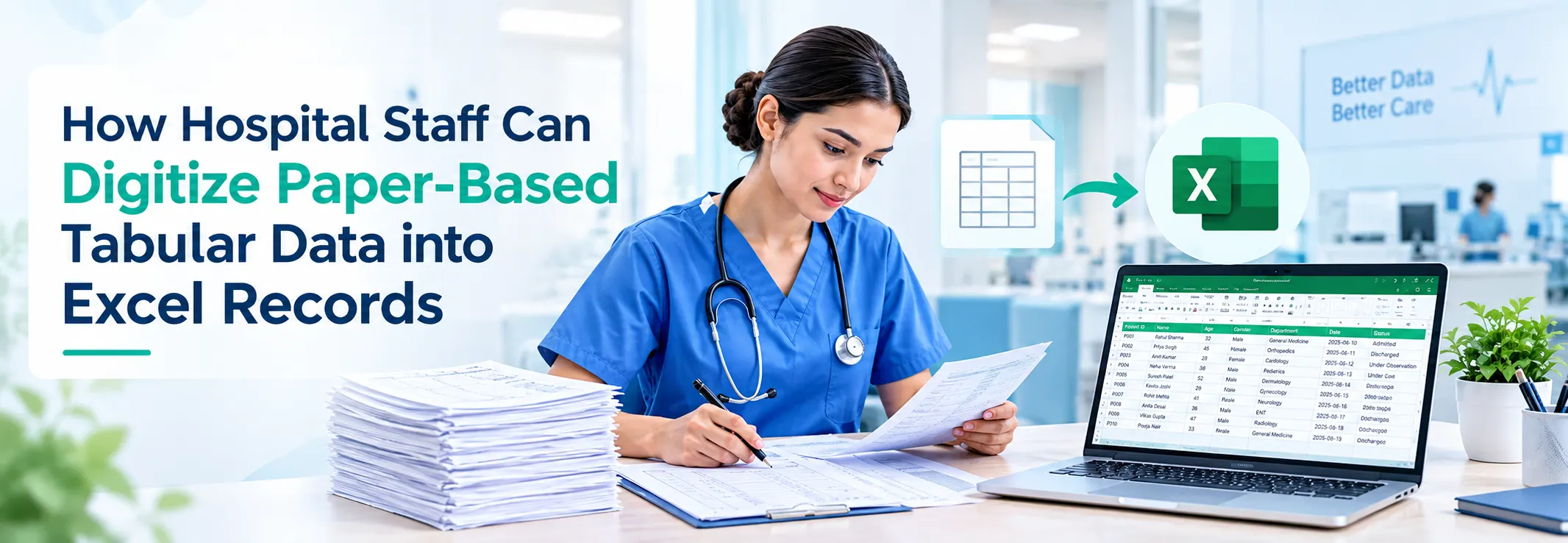
Some hospitals around the world still rely on paper to record patient details, medication data, and administrative information. While physical documents may seem convenient, the real hassle arises when hospital staff need to turn those files into Excel records for quick editing, accessibility, and searchability.
The manual process is hectic and error-prone, as the staff may accidentally miss some important details or make errors, resulting in frustration and disappointment.
So, what should they do? Well, there is no need to worry, as in this blog post we are going to explain a couple of quick and efficient methods for turning physical documents containing tabular data into Excel sheets.
Move beyond paper-based records with ZYNO HIMS and streamline hospital data, patient records, billing, workflows, and operations through a smarter digital hospital management system.
For both methods discussed below, the staff needs to capture a clear photo of the paper document using their mobile phone. This picture will then be converted into an editable Excel sheet.
So, make sure the image is complete and of high quality in terms of resolution.
Here are two quick and easy methods for turning paper-based tabular data into digital versions.
Microsoft Excel offers dedicated features known as “Data from Picture.” As the name indicates, it allows hospital staff to extract tabular information from an image into editable rows and columns.
It is important to note that the Data from Picture feature is currently available in Excel for Microsoft 365, as well as supported web and mobile versions.
So, if you don’t have an MS Office 365 version, download it from their website and follow the process discussed below.
Step 1:
First of all, you need to look for the “Data from Picture” option. It is available in the “Data” tab of the ribbon menu.

Step 2:
After clicking on this feature, it will offer two options for uploading the photo of paper-based tabular data. The options are:
You can go with any option based on your personal preferences.
Step 3:
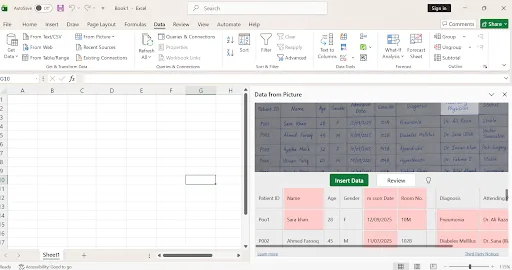
After uploading the captured image of tabular data, Excel will take only a few moments to analyze it and come up with a preview. The preview will contain both the original photo and its editable data in a spreadsheet.
The staff should carefully review the editable data to make sure it is accurate, complete, and error-free. If there is any mistake, they need to click on that specific cell, and a pop-up will appear, allowing them to update the information easily.
A screenshot is also attached below as a reference.

Step 4:
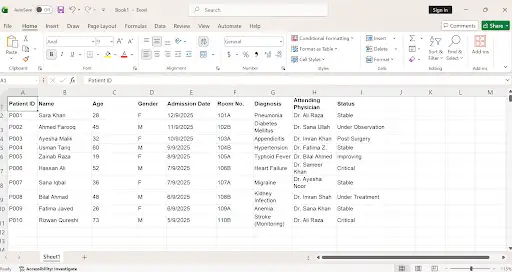
Once satisfied with the accuracy of the editable data, hospital staff can click on the “Insert Data” button. Doing so will automatically bring all the information from the preview section to the original Excel sheet for easy editing, copying, and searching.

Using a JPG to Excel converter for extracting tabular data from images is a quicker and more efficient method. This is because it does not require downloading anything and takes a few seconds to perform the conversion.
On the internet, there is a huge variety of such converters available. For effective hospital management, hospital staff should use a converter that pays special attention to data privacy and security. So, we suggest choosing one that has the following characteristics.
Fortunately, we came across JPG to Excel converter that fulfills all these requirements. We’ll use it as an example to demonstrate the following step-by-step process.
Step 1:
Hospital staff need to upload the captured photo of paper-based tabular data to the JPG to Excel converter. Usually, most tools provide multiple uploading options such as:
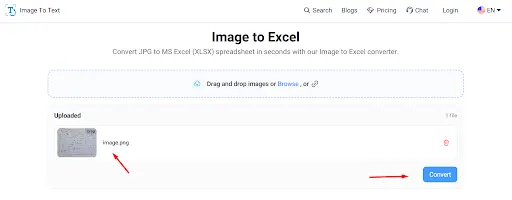
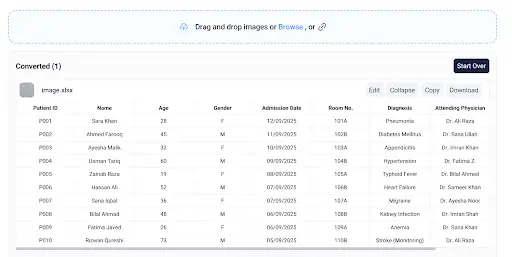
After uploading the picture, this is how its interface now looks:

Step 2:
Once the image is uploaded, the staff needs to click the “Convert” button to kickstart the process.
Step 3:
Within a matter of seconds after clicking the button, the JPG to Excel converter will present the extracted tabular data in a spreadsheet format.

The hospital staff can easily edit, update, copy, and download the result as per their specific needs and preferences.
Digitize paper-based hospital records and streamline patient data, billing, workflows, and daily operations with ZYNO HIMS.
Explore ZYNO HIMS →Digitizing paper-based tabular data of the hospital into Excel records will make information easier to organize, access, search, and edit for the staff. However, performing the digitization process through manual typing is extremely time-consuming and error-prone.
A better approach is to first capture photos of physical documents and then convert those images into spreadsheets using Excel’s built-in Data from Picture option or an online JPG to Excel converter.
No, a costly scanner is not required. Hospital staff can simply capture a clear photo of the physical document or paper register using their smartphone and convert it into a spreadsheet using Microsoft Excel or an online converter.
When capturing the image:
This feature is available in Microsoft 365 (Office 365) subscriptions as well as supported Excel web and mobile applications. If you are using an older desktop version, you will need to upgrade or use an online converter instead.

These methods work best with printed tabular data. While OCR (Optical Character Recognition) tools and Excel’s "Data from Picture" feature can sometimes read very neat handwriting, printed documents are strongly recommended for high accuracy.
To comply with patient confidentiality and data privacy guidelines, hospital staff should only use secure online converters that utilize strong encryption, do not store or share data with third parties, and automatically delete uploaded files from their servers after processing.
In Excel's "Data from Picture" preview, the tool highlights cell values that need review. Staff can simply click on the highlighted cell to correct the data before inserting it into the sheet. With online converters, adjustments can easily be made in Excel after downloading the file.
Yes, many advanced online converters feature multi-language OCR technology, allowing them to recognize and extract tabular data containing medical terms in multiple languages accurately.
While manual typing can take hours and is prone to human error, automated image-to-Excel conversion processes complete tables in just a few seconds, saving hospital staff over 80% of their data entry time.
Why Cloud-Based AI HIMS is Transforming the Future of Indian Healthcare
Read More →The Complete ZYNO HIMS Guide for Modern Healthcare Management
Read More →How a Hospital Management System Improves Healthcare Operations
Read More →
Cloud vs Offline Hospital Management Systems: What Should Your Hospital Choose
Read More →What Is a Hospital Information System (HIS)? Features, Benefits & Complete Guide
Read More →How HIMS Software Improves Patient Care and Hospital Efficiency
Read More →How Is Hospital Software Transforming Patient Data Management in Modern Healthcare
Read More →
HIMS Software in Kenya: The Complete Guide for Hospitals & Clinics (2026)
Read More →
Top 10 KareXpert HIMS Alternatives & Competitors in 2026
Read More →
What is a Clinic Management System and How Does It Improve Patient Care?
Read More →
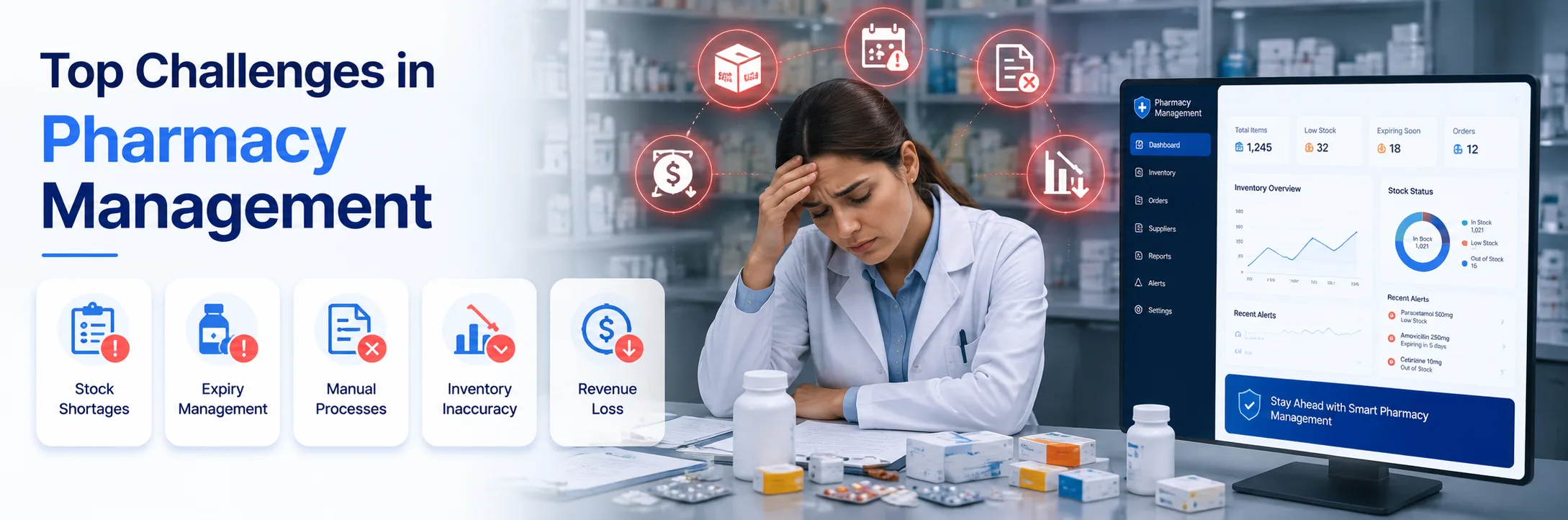
Top Challenges in Pharmacy Management and How to Overcome Them
Read More →
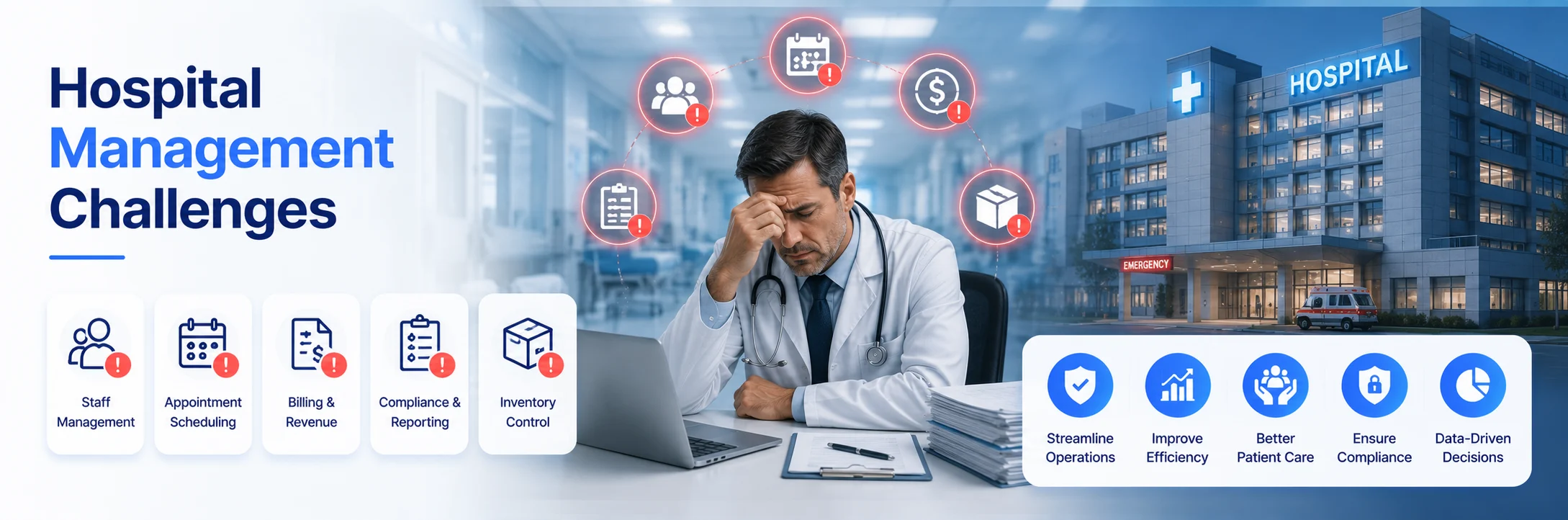
Top 10 Hospital Management Challenges and How ZYNO HIMS Solves Them
Read More →
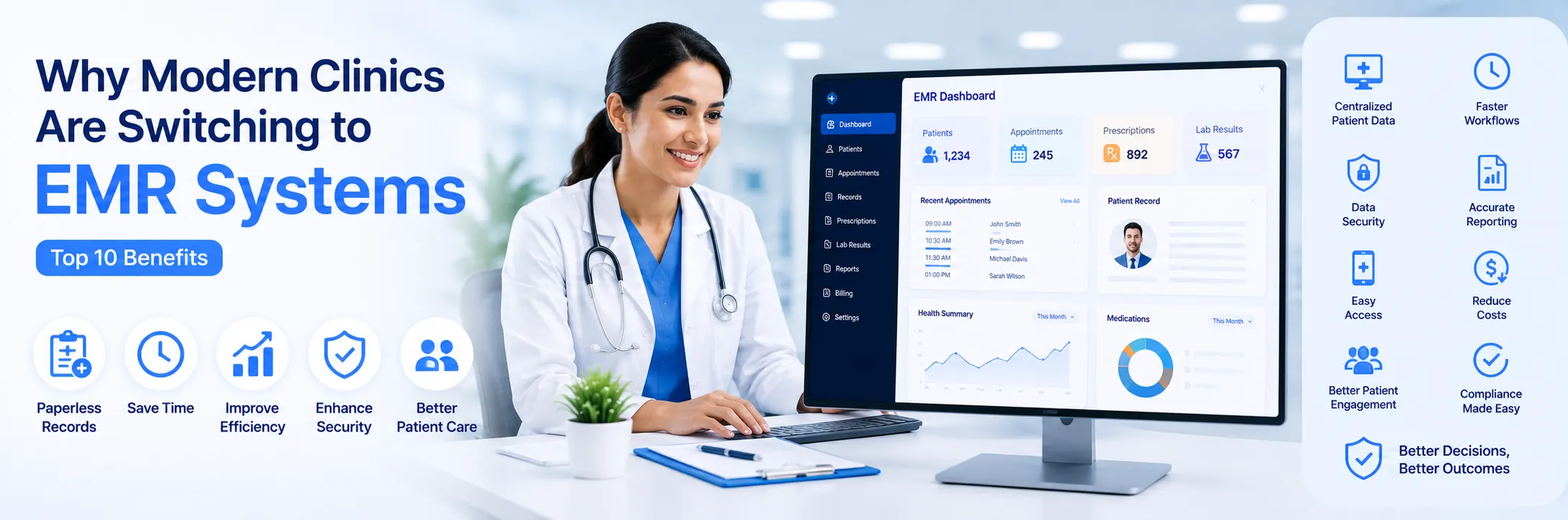
Why Modern Clinics Are Switching to EMR Systems
Read More →
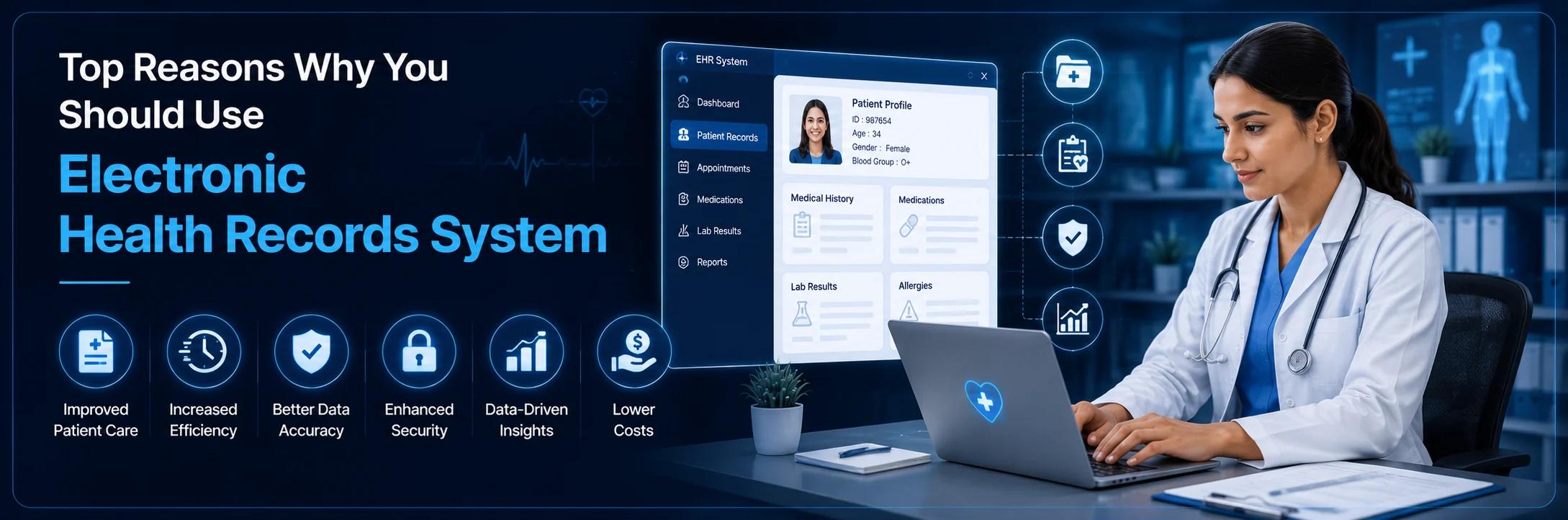
Top Reasons Why You Should Use Electronic Health Records System
Read More →
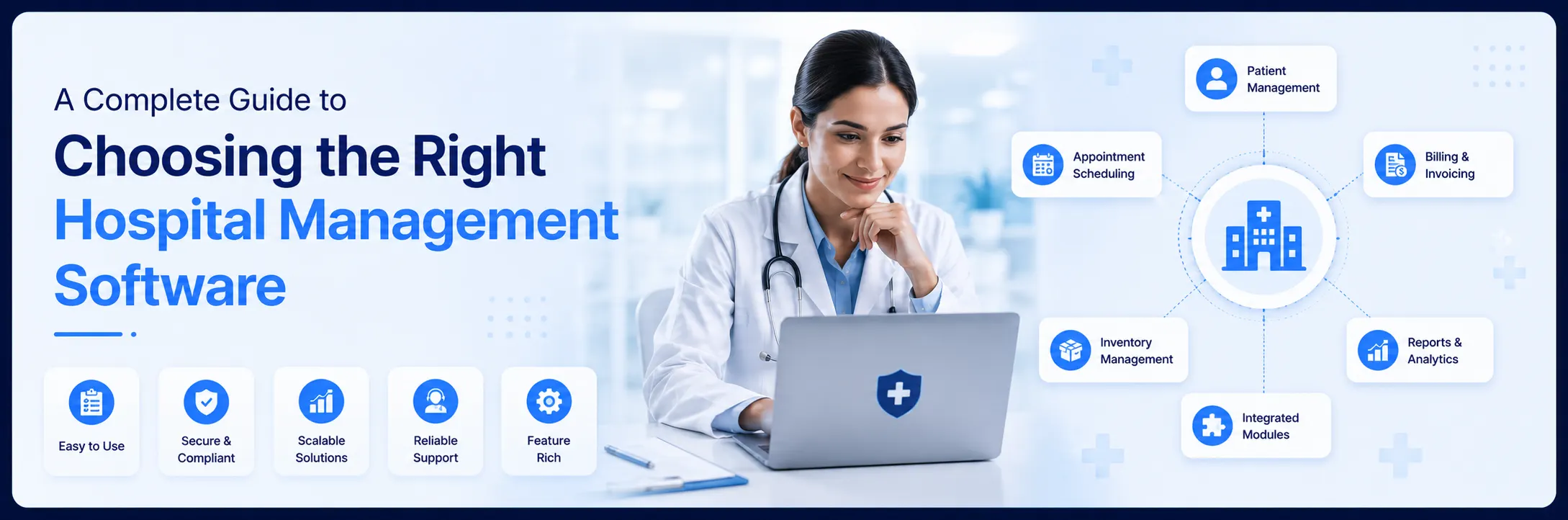
A Complete Guide to Choosing the Right Hospital Management Software
Read More →
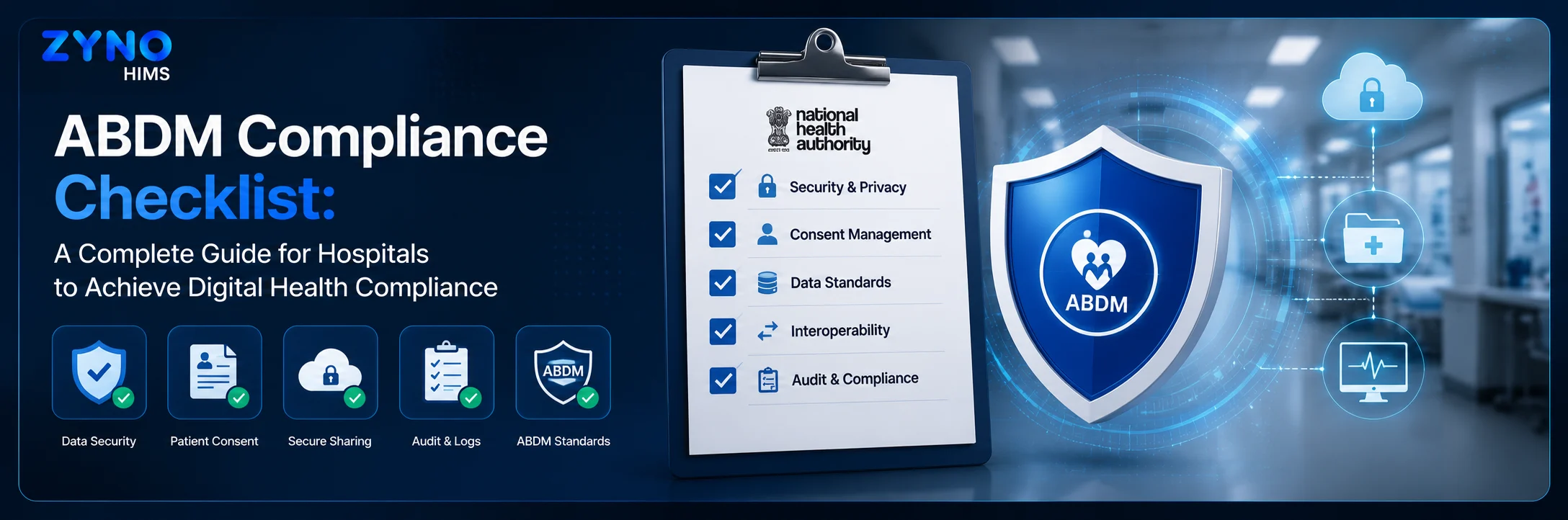
ABDM Compliance Checklist: A Complete Guide for Hospitals to Achieve Digital Health Compliance
Read More →
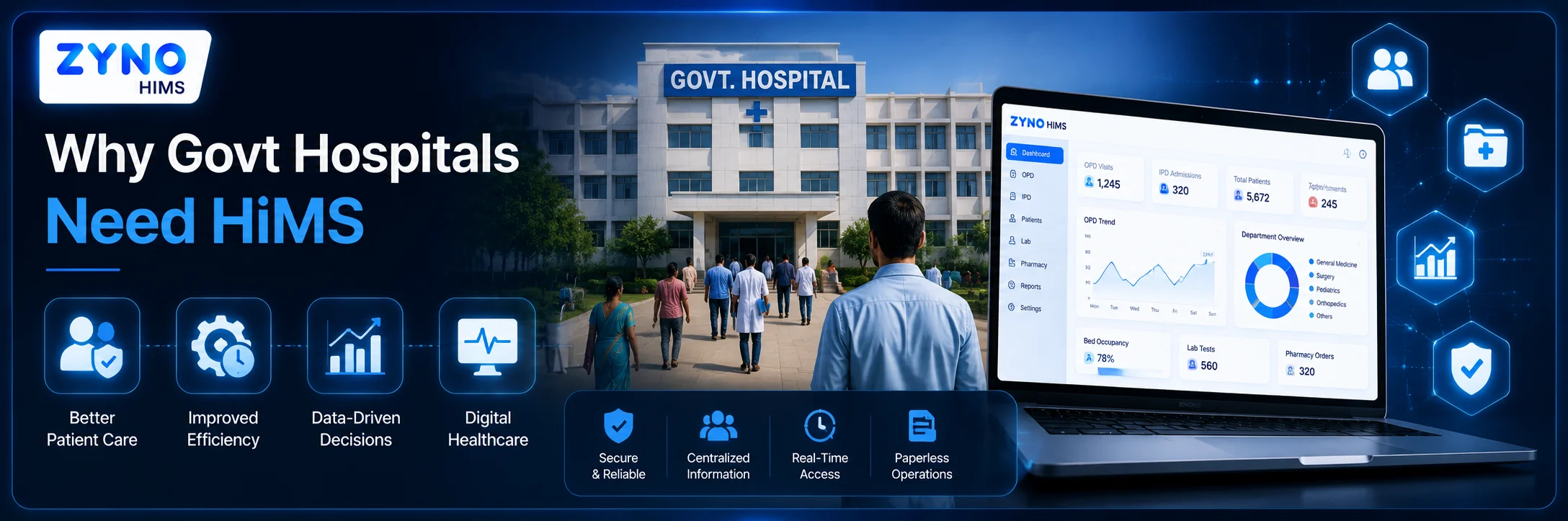
Why Govt Hospitals Need HIMS: Improving Patient Care, Efficiency, and Digital Healthcare
Read More →
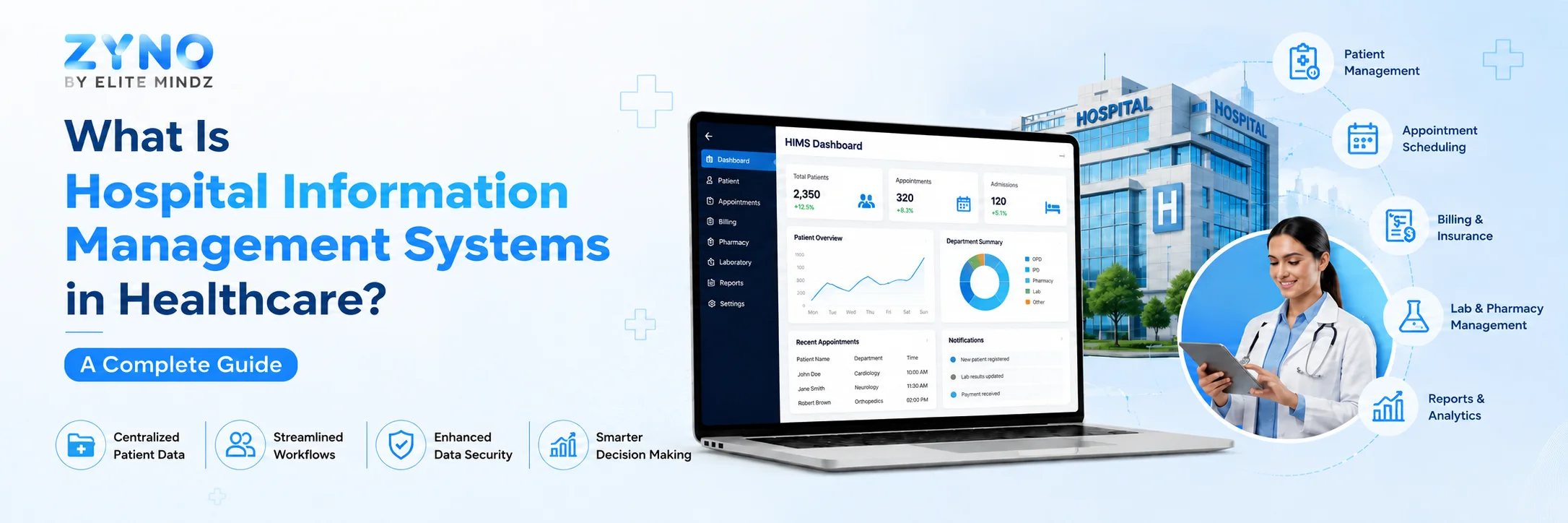
What Is Hospital Information Management Systems in Healthcare? A Complete Guide
Read More →
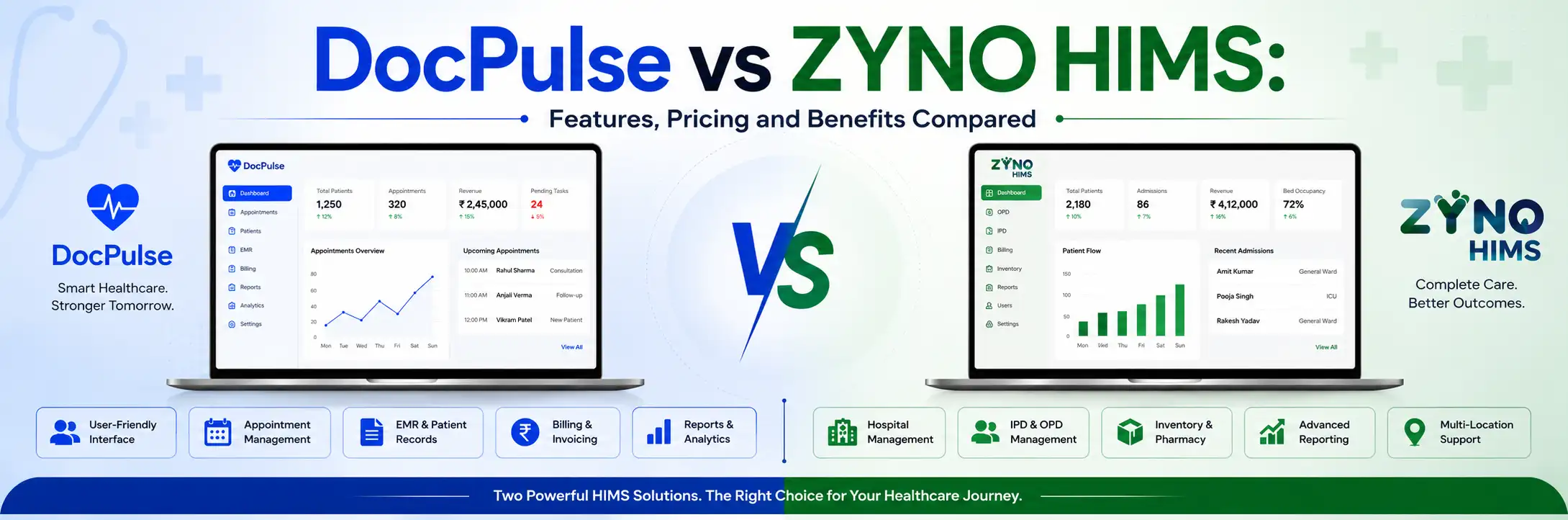
DocPulse vs ZYNO HIMS (2026): Why ZYNO HIMS Is the Smarter Hospital Management Choice
Read More →
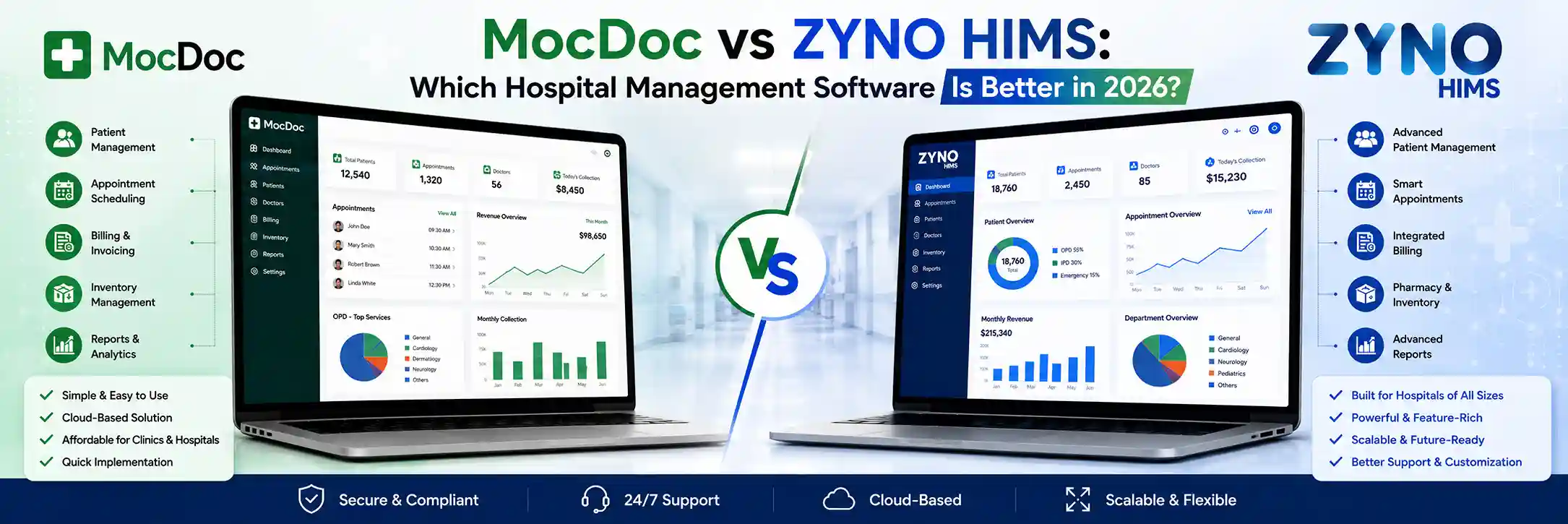
MocDoc vs ZYNO HIMS: Which Hospital Management Software Is Better in 2026?
Read More →
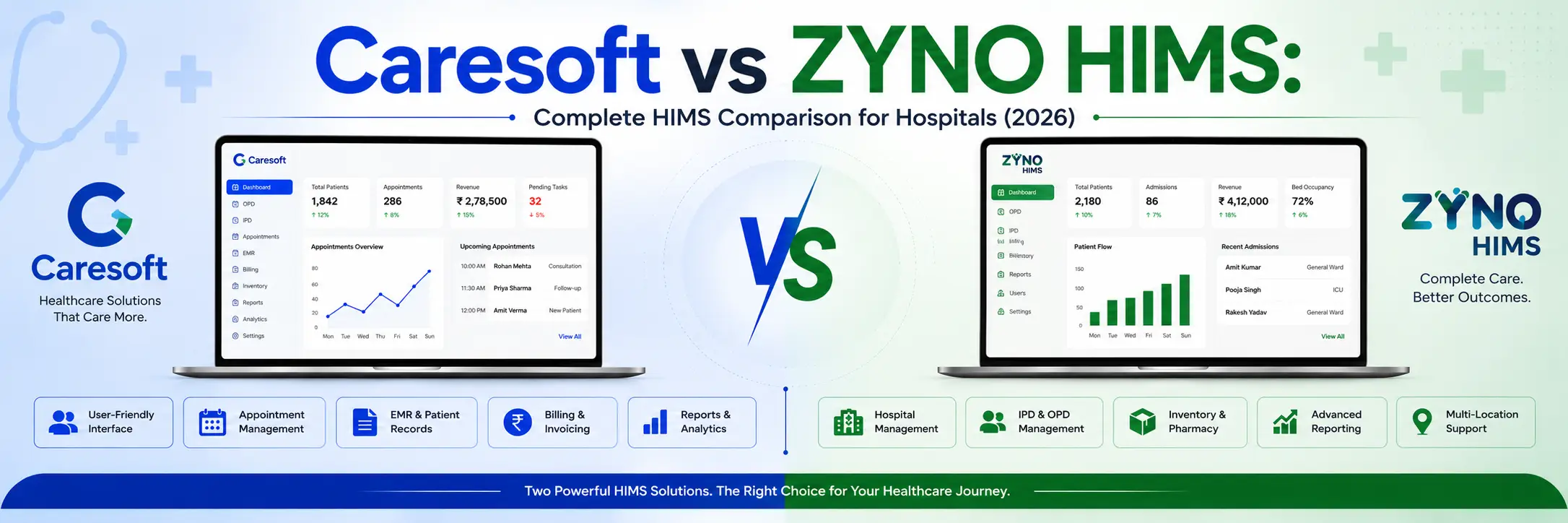
Caresoft vs ZYNO HIMS: Complete HIMS Comparison for Hospitals
Read More →
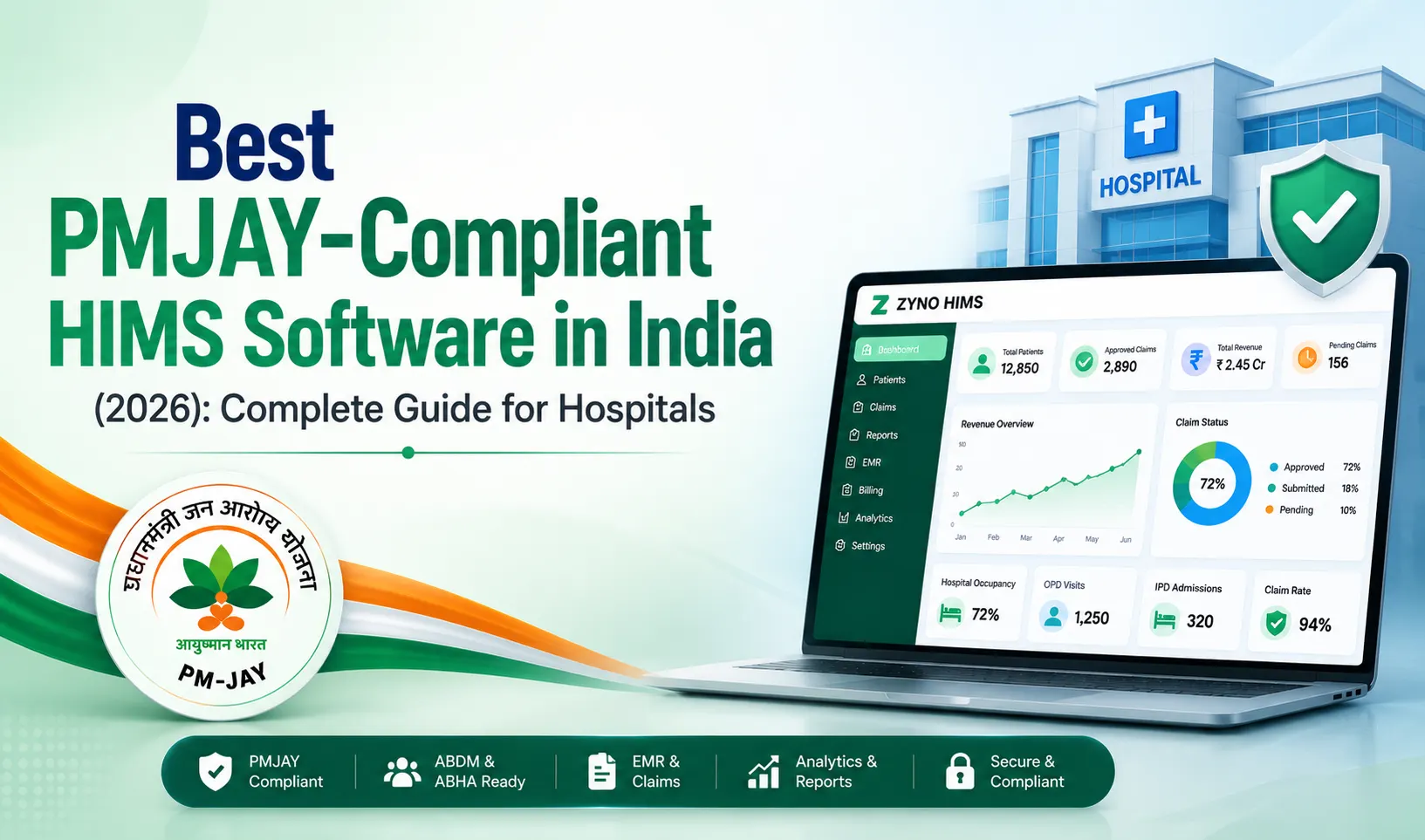
Best PMJAY-Compliant HIMS Software in India (2026): Complete Guide for Hospitals
Read More →
Medical Report Analyzer Software: How AI Makes Medical Reports Easy to Understand
Read More →
How to Choose a Hospital Management System
Read More →
AI in HIMS: 10 Practical Ways Artificial Intelligence is Transforming Hospital Management
Read More →
Best Hospital Management Software for Private Clinics in Kenya
Read More →
Hospital Management Software in Japan: What Healthcare Providers Need in 2026
Read More →
Pharmacy Management Software for Kenyan Pharmacies: Features That Matter
Read More →
DHA and MOH Compliance for Hospital Software in the UAE
Read More →
Top 10 Hospital Management Software in India 2026: Features, Pros, Cons & Pricing
Read More →
OPD vs IPD: Difference Between OPD and IPD, Services & Complete Guide
Read More →
Pharmacy Inventory Management: Methods, Inventory Control & Best Practices
Read More →
What Is a Pharmacy Information System (PIS)? Features, Benefits & How It Improves Pharmacy Management
Read More →
How Do You Check Inventory in a Pharmacy?
Read More →
What’s the Difference Between EHR and EMR? Key Differences, Benefits & Guide
Read More →
What is Radiology Information System? Features & Benefits
Read More →
What Is Digital Healthcare? Benefits, Examples & Future
Read More →
Healthcare Supply Chain Management Benefits
Read More →
Benefits of Patient Information Management Systems for Hospitals & Clinics
Read More →
What Is the Difference Between PACS, DICOM, RIS & CIS?
Read More →
Best Hospital Billing Software in India 2026: Top 10 Medical Billing Solutions
Read More →
Top Features of Hospital Billing Software in India
Read More →
Best Cloud-Based Hospital Inventory Management Software in 2026: Top 10 Solutions
Read More →
Which Hospital Management Software in India Is Suitable for Newly Established Hospitals?
Read More →
Medical Diagnostic Software: What It Is, How It Works & Top 5 Players in 2026
Read More →
10 Best Patient Management Software in 2026
Read More →
Hospital Management Software for Multispecialty Hospitals: A Complete Guide
Read More →
Top 10 Multi-Location Hospital Management Software in India
Read More →
Top 10 Hospital Management Software Companies in Qatar
Read More →
ZYNO HIMS: Enterprise Healthcare Management for Private Facilities
Read More →
How Hospital Staff Can Digitize Paper-Based Tabular Data into Excel Records
Read More →Partner with ZYNO by Elite Mindz to revolutionize how your business works. Fill out the form, and we’ll reach out with AI-powered solutions made just for you.
We use browser cookies to ensure you get the best experience on our website. Learn more
The form was submitted successfully!